By Jack Pan — Founder of Cartosketch, developer, designer, and map enthusiast
How to Create a Watercolor Map in 60 Seconds
Learn how to create a stunning watercolor map of any real-world location using Cartosketch's AI watercolor map maker — no art skills needed. Step-by-step tutorial with tips for travel bloggers, gift makers, and home decor enthusiasts.
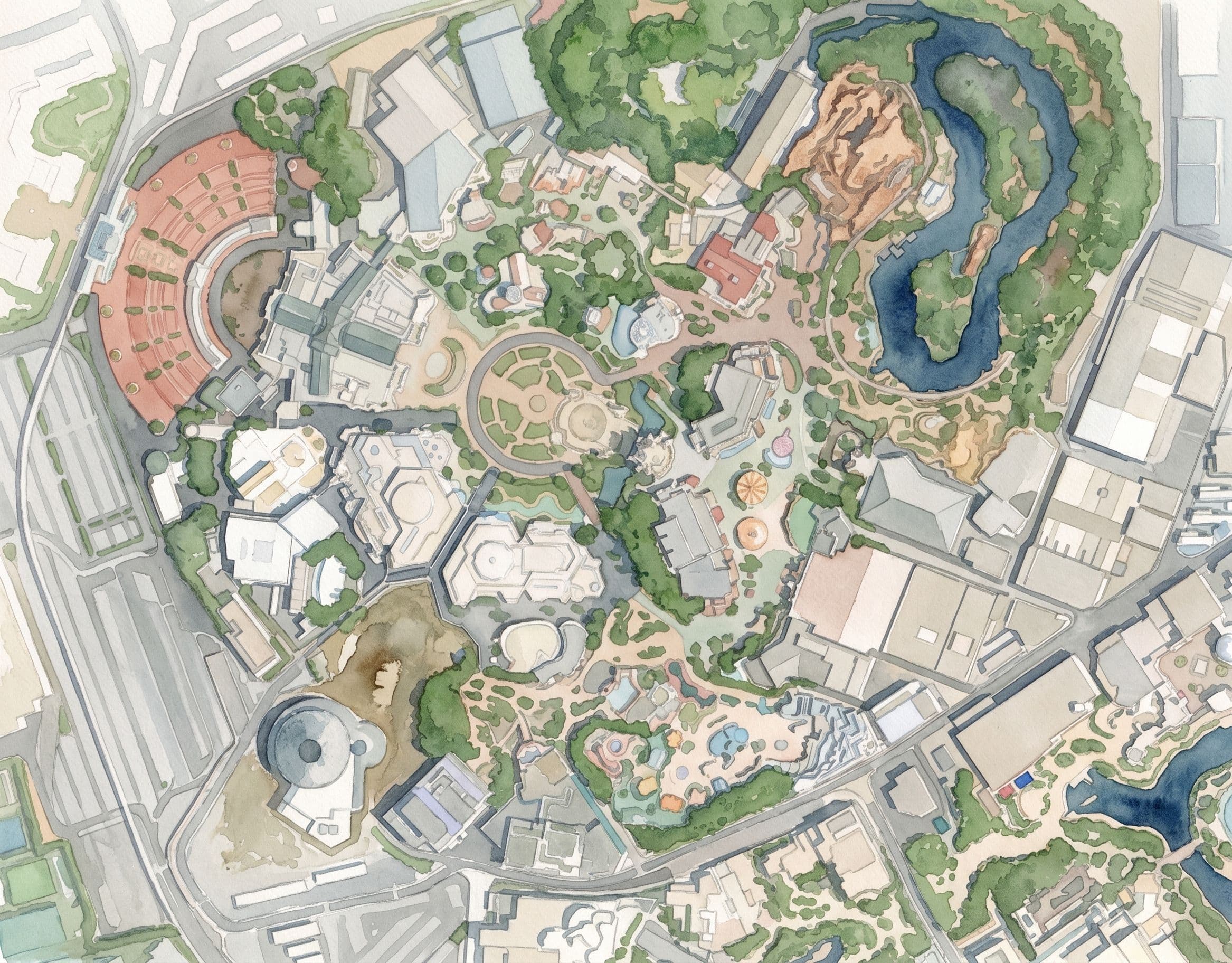
A watercolor map is an artistic rendering of a real-world location styled to look like it was painted with watercolor brushes — soft washes of color, gentle outlines, and painterly textures. With Cartosketch's AI watercolor map maker, you can generate one from any address on Earth in under 60 seconds, no brushes required.
What is a watercolor map?
A watercolor map blends the precision of cartography with the warmth of hand-painted art. Streets, coastlines, and landmarks stay geographically accurate, but the colors bleed softly into each other, edges feather like real brush strokes, and the whole image feels handcrafted rather than digital. They've become one of the most popular styles for travel prints, wedding gifts, housewarming presents, and home decor — and for good reason: a watercolor map of the place you fell in love, grew up, or got married is a story told in color.
Traditionally, creating one meant commissioning an artist or spending hours with actual watercolor paints, reference tiles, and a lot of patience. Cartosketch's AI watercolor map maker changes that entirely: type in any address, click generate, and download a print-ready watercolor map in about 60 seconds.
How to create a watercolor map: step-by-step
Step 1 — Search for your location
Go to your Cartosketch dashboard and click "New Map". In the search bar, type any address, neighborhood, city, or landmark — Cartosketch uses Google Places autocomplete, so it works with everything from "Amalfi Coast, Italy" to "Central Park, New York" to a specific street address. Hit enter and the map will fly to that location instantly.
Step 2 — Select and frame your area
Drag the map to center exactly the area you want to capture. Use the zoom slider to control how much geography appears — zoom in for a neighborhood or landmark detail, zoom out for a city or regional overview. You can also rotate the bearing (the compass angle) if a slight tilt makes the composition more interesting. The preview you see on screen is what the AI will use as its source, so take a moment to frame it thoughtfully.
- Zoom 12–14: neighborhood scale — great for a specific district or village.
- Zoom 10–12: city scale — captures the full urban footprint.
- Zoom 8–10: regional scale — coastlines, islands, and mountain ranges read well here.
Step 3 — Choose the Watercolor style
In the Style panel, select "Watercolor". Cartosketch's watercolor style is tuned to produce soft color washes, gently feathered edges, and the natural pooling of pigment that makes real watercolor paintings recognizable. You can leave the prompt field empty for a clean default output, or add a short description to nudge the color palette — for example: "warm golden tones", "cool blues and greens", or "muted pastels for a vintage feel".
Step 4 — Click Generate
Hit the Generate button. Cartosketch fetches a high-resolution Mapbox tile of your selected area, sends it to Google Gemini with the watercolor style instructions, and returns a styled PNG — usually in under 60 seconds. The result appears in your map editor. If the first generation is almost right but not quite, use the Modify tool to tweak the color palette, or use Inpainting to refine a specific region without regenerating the whole image.
Step 5 — Download your watercolor map art
Click the Download button to save your watercolor map as a high-resolution PNG. On the Credit Pack and Pro plans, the output is 2K (2048×2048 pixels) — large enough to print as an A2 poster or a framed art print. No watermarks. No attribution required. The file is yours.
Best locations for watercolor maps
Almost any location looks beautiful in watercolor, but some types of geography are especially well suited to the style. Here's what works best — and why.
| Location type | Why it works | Example |
|---|---|---|
| Coastal areas | Water and land create natural contrast; shoreline curves become expressive brushstrokes | Amalfi Coast, Cape Cod, Ha Long Bay |
| Historic city centers | Dense, irregular street grids and varied building footprints give the AI rich texture to work with | Florence, Prague, Kyoto old town |
| Parks and green spaces | Organic shapes from tree canopy and pathways read beautifully as layered washes of green | Central Park, Regent's Park, Bois de Boulogne |
| Islands and peninsulas | Water surrounding land creates a natural frame; the shape is immediately recognizable | Manhattan, Singapore, Venice |
| Mountain valleys | Elevation contrast translates into tonal depth; rivers and roads thread through the composition | Swiss Alps, Yosemite Valley, Scottish Highlands |
| Neighborhoods with sentimental value | Even a quiet suburb becomes art when rendered in watercolor — perfect for personal gifts | Wherever home is |
AI watercolor map vs hand-painted watercolor: honest comparison
You might be wondering how AI watercolor compares to commissioning a real artist or painting one yourself. Here's the honest breakdown.
| Dimension | Cartosketch AI watercolor | Hand-painted watercolor |
|---|---|---|
| Time to first result | 60 seconds | 6–40+ hours |
| Geographic accuracy | Exact — sourced from real Mapbox data | Depends on artist reference quality |
| Cost | From free (1 credit on signup) | $150–$800+ for a commissioned piece |
| Iterations | Unlimited — Modify or Inpaint in seconds | Each change requires repainting |
| Resolution | Up to 2K PNG (2048×2048) | Depends on physical canvas size and scan quality |
| Authenticity | AI-generated — disclosed as digital art | Fully hand-crafted original artwork |
| Skill required | None — search, click, download | Years of watercolor practice |
| Best for | Gifts, travel prints, home decor, content creation | Heirloom pieces, fine art collectors |
If you want a one-of-a-kind original painting to hang above the fireplace for decades, a human artist is still the gold standard. But if you need a beautiful watercolor map of 15 locations for a travel blog, or a personalized wedding gift by Saturday, AI watercolor map art is the practical choice — and the results are genuinely lovely.
How to use your watercolor map
- Print as wall art: order a print at any online print service (Printful, Artifact Uprising, Printify) — the 2K PNG is large enough for A2 poster or framed 18×18" art print.
- Personal gifts: travel bloggers and gift-makers love watercolor maps for birthdays, weddings, anniversaries, and housewarmings.
- Blog and social media: a watercolor header image of a destination makes travel content more visually distinctive.
- Home decor: a watercolor map of your neighborhood or city printed on canvas makes a meaningful piece of art for any room.
- Event programs and menus: wedding venues, destination events, and travel retreats use watercolor maps as decorative elements in printed programs.
You can also browse the gallery at cartosketch.com/gallery for inspiration — real watercolor maps generated by Cartosketch users from locations around the world.
Pricing for watercolor maps
Creating a watercolor map with Cartosketch starts free. Here's a quick look at the options — you can see full details at cartosketch.com/pricing.
| Plan | Price | Maps included | Resolution | Best for |
|---|---|---|---|---|
| Free (signup gift) | $0 | 1 map | 2K | Trying it once, no card needed |
| Credit Pack | $5 one-time | 3 maps (never expire) | 2K | Occasional gifts or one-off projects |
| Plus | $10/month | 30 maps/month | 2K | Regular content creators |
| Pro | $20/month | 100 maps/month | 2K | High-volume use and print quality |
Frequently asked questions
- What is a watercolor map?
- A watercolor map is an artistic version of a real-world location rendered to look like it was painted with watercolor brushes — with soft color washes, feathered edges, and painterly textures. It preserves the geographic accuracy of the underlying map (streets, coastlines, landmarks) while giving it the warmth and visual appeal of hand-painted art.
- How do I create a watercolor map for free?
- Sign up for a free Cartosketch account — you'll receive one generation credit instantly, no payment details required. Use that credit to generate your first watercolor map: search for a location, select the Watercolor style, and click Generate. The result downloads as a full 2K PNG with no watermark.
- How long does it take to generate a watercolor map?
- Typically under 60 seconds from clicking Generate to having a downloadable PNG. The exact time depends on server load, but most generations complete in 30–90 seconds.
- Can I create a watercolor map of any location?
- Yes — Cartosketch can render any location that Mapbox can display, which covers the entire globe. Urban areas have detailed street-level data; remote and rural areas use satellite imagery. Both work well in watercolor style.
- Is the watercolor map high enough resolution to print?
- Yes. Every plan now outputs at 2K (2048×2048 pixels), which is suitable for printing at A2 poster size or as a framed art print up to 18×18 inches at 150 DPI.
- Can I customize the colors in my watercolor map?
- Yes — add a short color description to the style prompt field when generating. For example: "warm amber and terracotta tones", "cool blues and misty greys", or "soft pink and lavender pastels". After the first generation, you can also use the Modify tool to shift the palette without starting over.
- Can I sell watercolor maps I create with Cartosketch?
- Yes — commercial use is allowed on all paid plans (Credit Pack, Plus, and Pro). That includes selling prints, using maps in client work, or featuring them in products for sale. The free signup credit is intended for personal use.
Founder of Cartosketch — developer, designer, and map enthusiast.