Create Your First Map, Route Art, or World with AI Chat
Describe a place or upload a GPS track, review the proposed settings and price, and create your first Cartosketch artwork or playable world.
Todas as imagens deste artigo foram geradas com a Cartosketch — uma ferramenta de IA que reestiliza geografia real do Mapbox e rotas de GPS.
Start with the thing you want to make: a picture of a meaningful place, artwork from an activity, or a small world to explore in a game. Cartosketch's creation chat helps choose the product and settings. You review the proposal before starting generation.
Choose the result
| You want | Ask for | What to provide |
|---|---|---|
| A digital illustration of a place | Map artwork | A landmark or address, plus its city and country |
| Artwork of a run, ride or hike | Route artwork | Your GPX or FIT file |
| A playable save | World | A small real place and your game format |
A Minecraft-style picture is Map artwork. A World is a save file you import into a game. If that distinction matters, say “playable world” or “2D artwork” in your first message.
Start a creation chat
- Open New chat, also labelled + New in the dashboard.
- Describe what you want. For example: “Make watercolor map art of the Eiffel Tower in Paris, France, for a portrait gift.” For a route, attach the GPX/FIT file and describe the activity artwork. For a world, name a compact landmark area and say Java, Bedrock or Luanti.
- Answer any questions. If several locations match, check the city and the map preview before choosing. A place name alone cannot supply a recorded GPS route.
- Review the proposal. Open Edit all settings to inspect the style, ratio and resolution, or the World format, mode and area.
- Check the credit quote, then select Confirm and generate. Discussing an idea or adjusting the proposal does not start a paid generation.
- Open the finished result in its editor to inspect it and download. You can return to the saved chat later.
These prompts are starting points, not examples of completed generations. Use your own place or activity and check the proposed location.
What to check before confirming
For Map and Route artwork, choose the style and composition first. Free access generates at 1K. Plus/Pro or a remaining credit-pack balance unlocks 1K, 2K and 4K, costing 1, 2 and 3 credits per successful image generation respectively. Every account can select the supported regular aspect ratios.
For a World, select the game you use and a generation mode: Objects only, Objects + Terrain or Terrain only. New worlds cover 0.01–0.25 km², with each side at most 1,024 metres; follow any lower limit shown in the editor. Each allowed World costs 1 credit. Start with a small site rather than a whole city.
New accounts receive 1 credit. Review the displayed quote and balance for your particular task. Images are charged on successful delivery; World charges are refunded after a confirmed failure or cancellation.
When to open the editor
The chat is useful for choosing an idea and reviewing settings. Open the linked editor for precise map framing, route presentation, World boundaries or spawn points. Upload Map GeoJSON layers in the Map editor. Check the preview again after changing the framing, then generate from the editor or return to the chat.
After a Map or Route has an image, you can request a visual edit in chat. Changing a location, framing or other source settings calls for a fresh generation instead. World saves do not support this image-editing flow.
Waiting and downloading
Keep the page open while the input is being prepared and submitted. Once the image task is accepted and the status says it can continue in the background, you may leave and return. Use the stop control in the chat composer to cancel an active image task. If an image is ready but waiting for credits, add credits and select Continue before it expires; the saved result is held for up to 24 hours.
Free image downloads are watermarked JPEGs. Paid access or an existing clean-download entitlement provides the original PNG. Worlds download as Java/Luanti ZIPs or Bedrock .mcworld files. Check the import guide for your game.
A real proposal before generation
Read the proposed values before confirming. In this example the request mentioned 0.04 km², while the resolved place produced a 0.06 km² area. Open the World editor if you need a precise boundary; the requested number alone does not set the final area.
Route artwork: an existing example
A source map and a finished route illustration make the Route option easier to recognize. This NYC Marathon example already appears in the Garmin guide; it is not a new upload or a chat-edit demonstration.
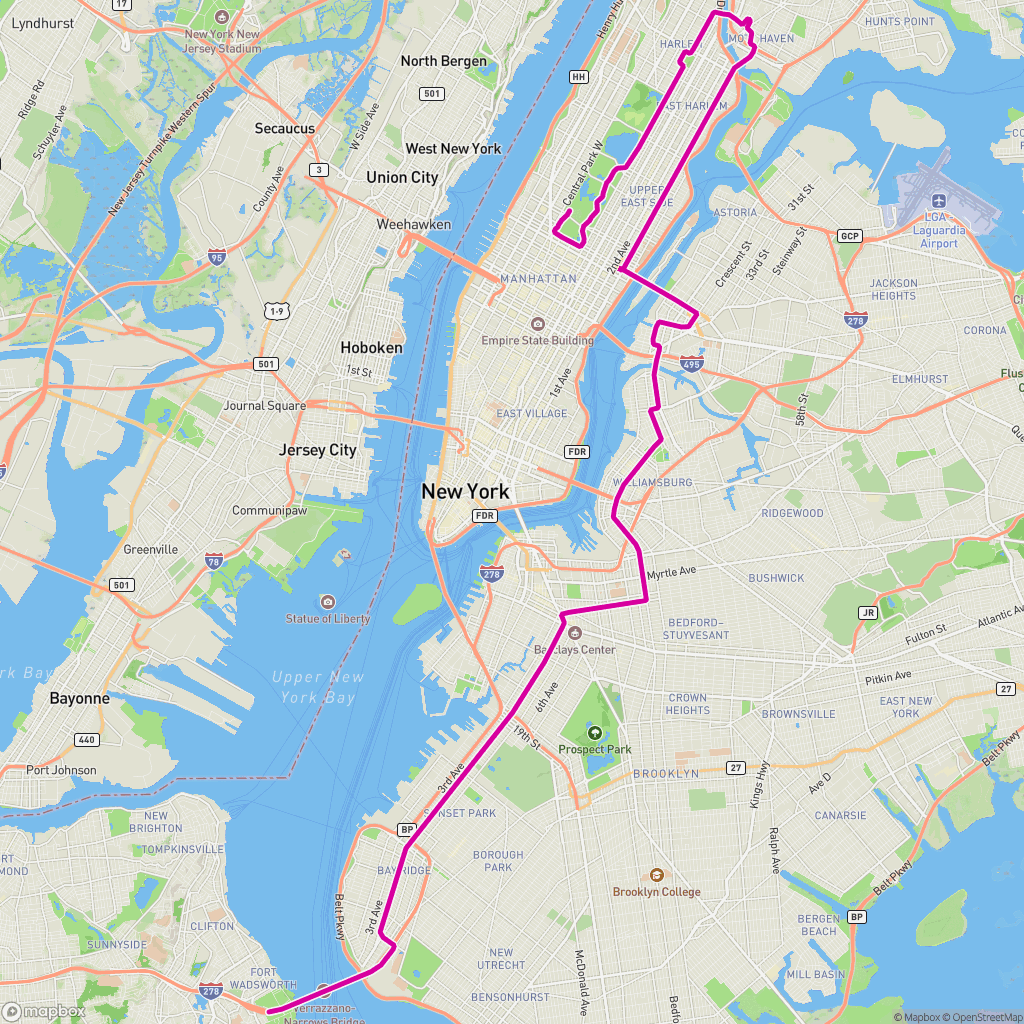 GPX / Mapbox
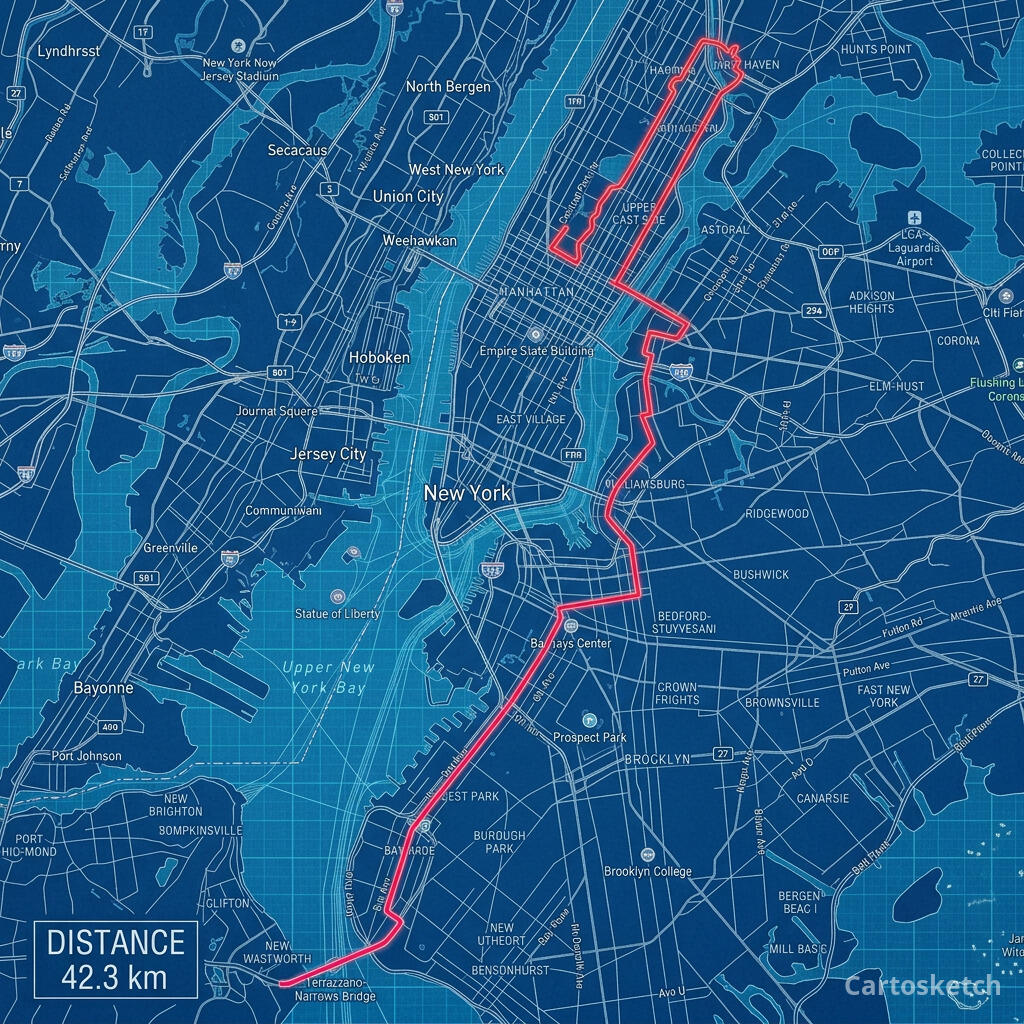 Cartosketch
Follow the marathon guide or Garmin export guide, then check print sizing.
- Can I paste a Strava link instead of uploading a track?
- For this flow, export and upload a GPX or FIT file. The route coordinates come from the file you supply.
- Why did the chat ask for a more specific place?
- The name may be ambiguous, or a World region may be too large. Add the city and country, choose the right match, or name a smaller landmark area.
- Do I have to subscribe to try it?
- No. Start with the signup credit. If you need more, credit packs are a one-time option alongside subscriptions; see pricing.
Continue with landmark artwork, a marathon route, or your first World. For a gift, see personal map gifts.
Contas novas ganham um crédito grátis — sem cartão de crédito. Product details