
Turn a Komoot Route Into AI Map Art
Export a Komoot Tour or planned route as GPX, upload it to Cartosketch, and make a printable poster from the exact cycling, hiking, or running route.
All artwork in this article was generated with Cartosketch — an AI tool that re-styles real Mapbox geography and GPS routes.
Komoot is excellent for planning where you will ride, hike, or run. Cartosketch is for what happens after: turning that route into a piece of art you can print, frame, or give as a gift.
1. Export the GPX from Komoot
Open the route or completed Tour in Komoot's web app and use the export or more-options menu to download the GPX file. Komoot's wording can vary between planned routes and completed Tours, but the goal is the same: save a `.gpx` file that contains the route geometry.
If you are making a poster for a planned adventure, export the planned route. If you are making a keepsake after the trip, export the completed Tour so the poster reflects what actually happened.
2. Clean route beats complicated route
Before upload, check whether the route has duplicate loops, wrong starting points, or navigation detours you do not want in the final artwork. Cartosketch will preserve the route shape, so it is worth exporting the clean version.
3. Upload the GPX to Cartosketch
In Cartosketch, open New Route and drop in the GPX. The route is drawn over a real Mapbox view, then restyled by AI. That means the poster stays anchored to real geography instead of becoming a generic adventure-map illustration.
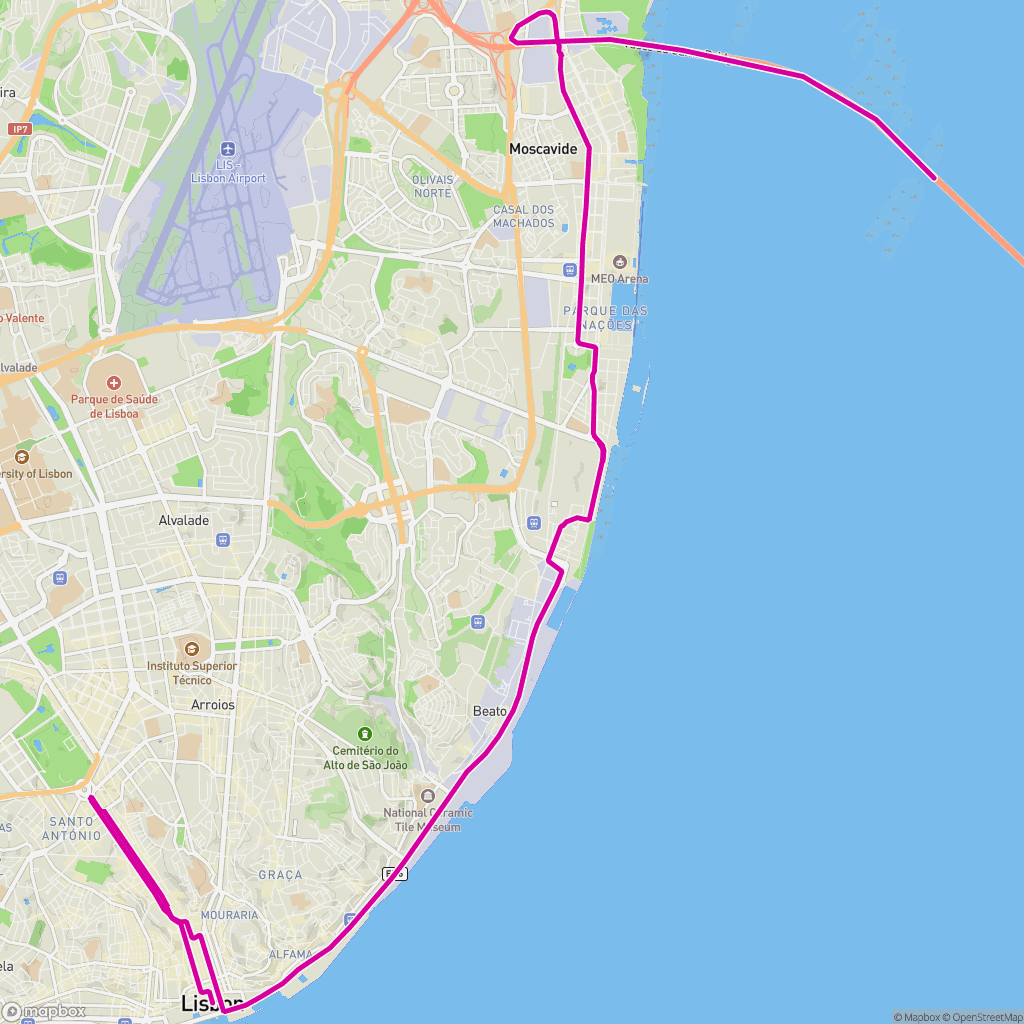 GPX on Mapbox
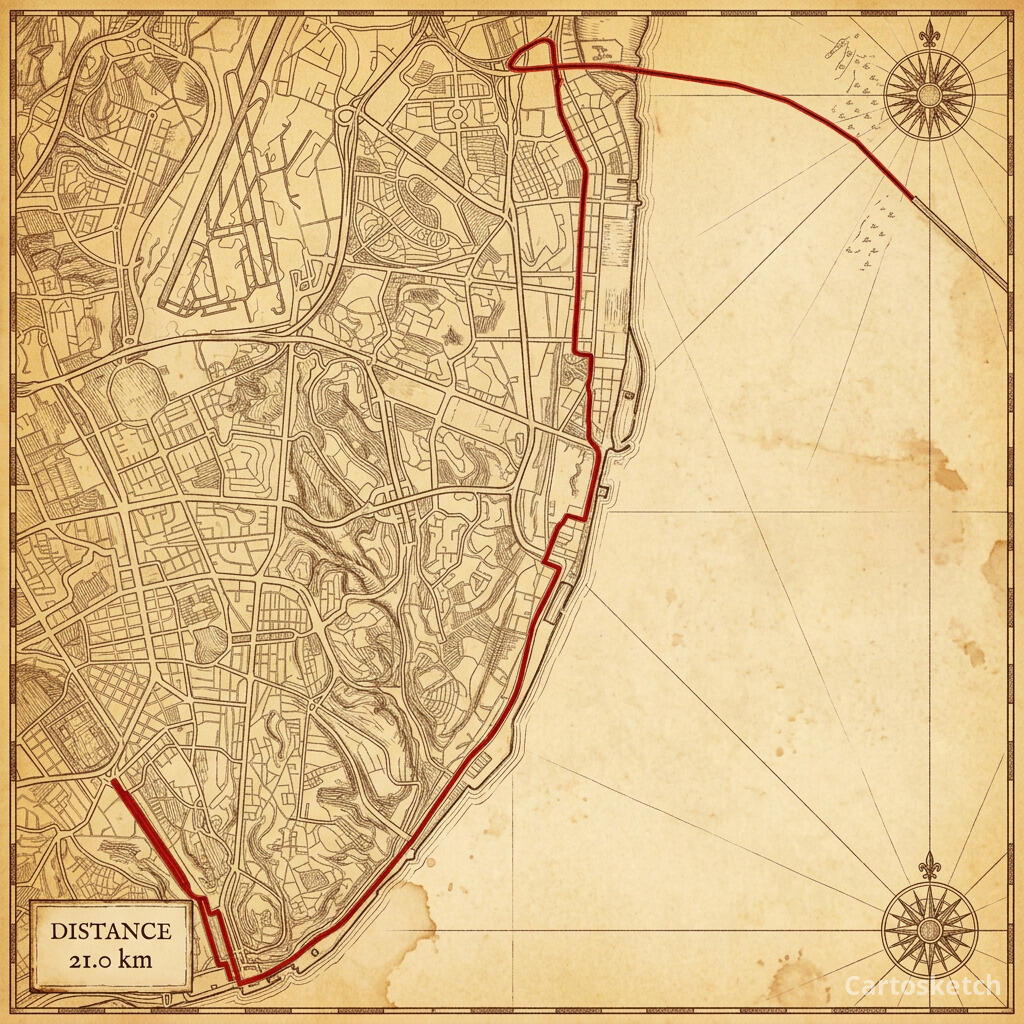 Cartosketch
Best styles for Komoot routes
- Vintage Map for touring, gravel, and multi-day trips.
- Watercolor for scenic hikes and travel memories.
- Topographic when elevation and terrain are part of the story.
- Blueprint for urban rides and city loops.
Print or share the finished route
Use a square image for social posts, a portrait ratio for framed wall art, and a landscape ratio for long point-to-point routes. Paid plans unlock higher resolution, custom aspect ratios, and clean downloads for printing.
Frequently asked questions
- Can I use a Komoot planned route?
- Yes. Export the planned route as GPX and upload it to Cartosketch. For a memory poster, a completed Tour is often better because it reflects the route you actually took.
- Does Cartosketch need my Komoot account?
- No. Cartosketch only needs the exported GPX file. You do not connect your Komoot account.
- What if the route is very long?
- Long routes work, but choose a landscape or tall portrait ratio so the full line has room. If the route has many tiny detours, clean it before export.
New accounts get one free credit — no credit card required.